
Add your Credit or Debit card for Recurring Payments
If you would like to automate your payments so that you do not have to manually settle your due invoices every month. You can simply pay one of your unpaid invoices using the Recurring Billing option and then all other invoices will automatically be paid for when they are due.
To start login to the My Rapidnet Portal and select the Invoices box on the top of the screen, that will list your invoices including Unpaid Invoices.

Select the Unpaid Invoice.

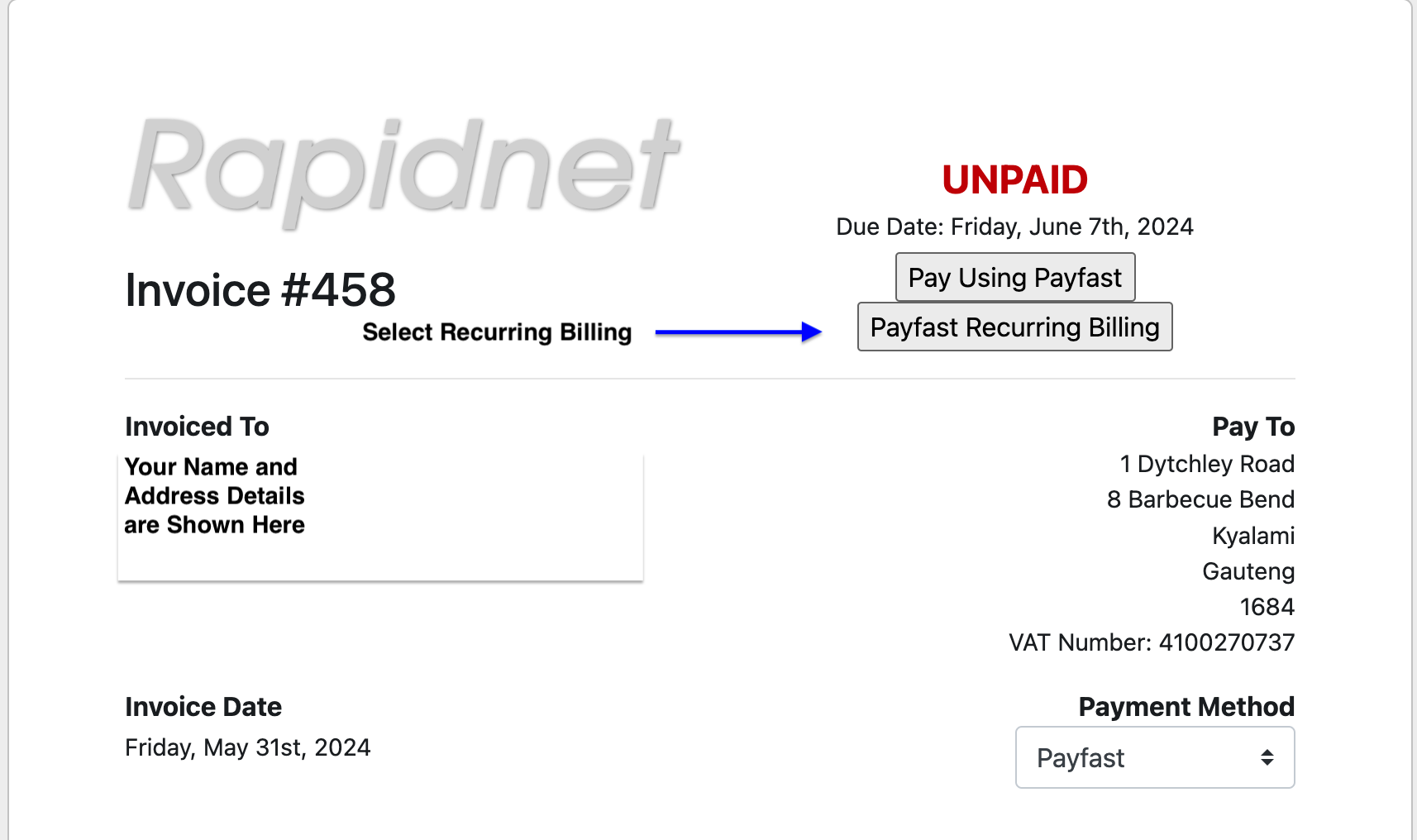
Now you will see the Invoice, Make sure that the Payment Method is "Payfast" then you can select Payfast Recurring Billing
You will now be taken to the Payfast page where you can enter your Card Details and make the payment.
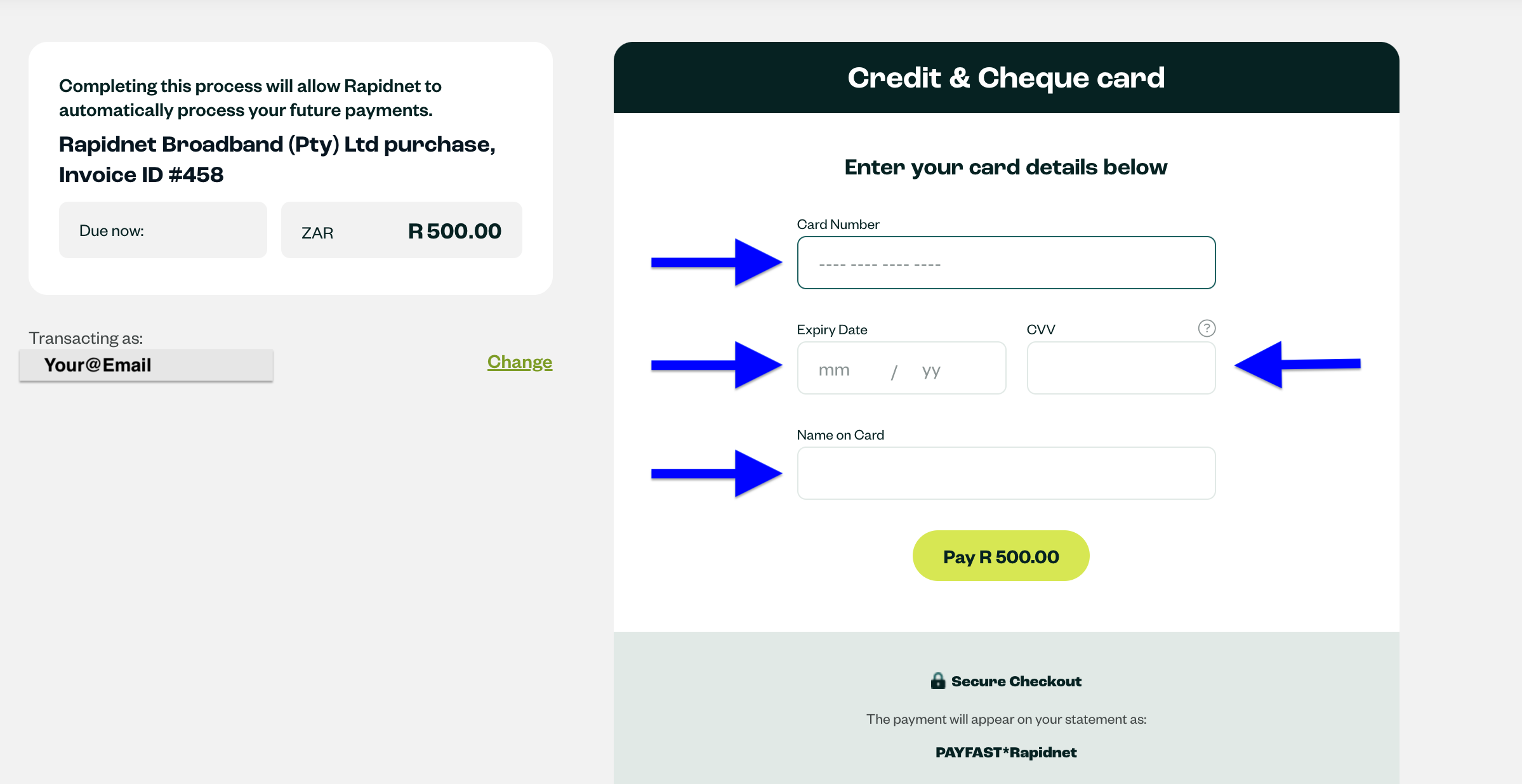
When making the payment you will be ask to Verify your payment, this is usually done via a OTP (One Time Pin) via your Banking App or your Banking App will prompt you to Accept the Payment. The exact process may be slightly different depending on your Bank.
