
Are you considering transferring your existing domain to Rapidnet for seamless management and reliable service? Here's a comprehensive guide to help you navigate the domain transfer process:
-
Preparing Your Domain for Transfer
- Before initiating the transfer process, ensure that your domain is eligible for transfer. Some domains may have transfer restrictions, such as being within the first 60 days of registration or being locked for transfer by the current registrar.
- If your domain is locked for transfer, you'll need to unlock it through your current registrar's control panel. Log in to your account with the current registrar and navigate to the domain settings to unlock it for transfer.
-
Obtaining Your EPP Code (Authorisation Code)
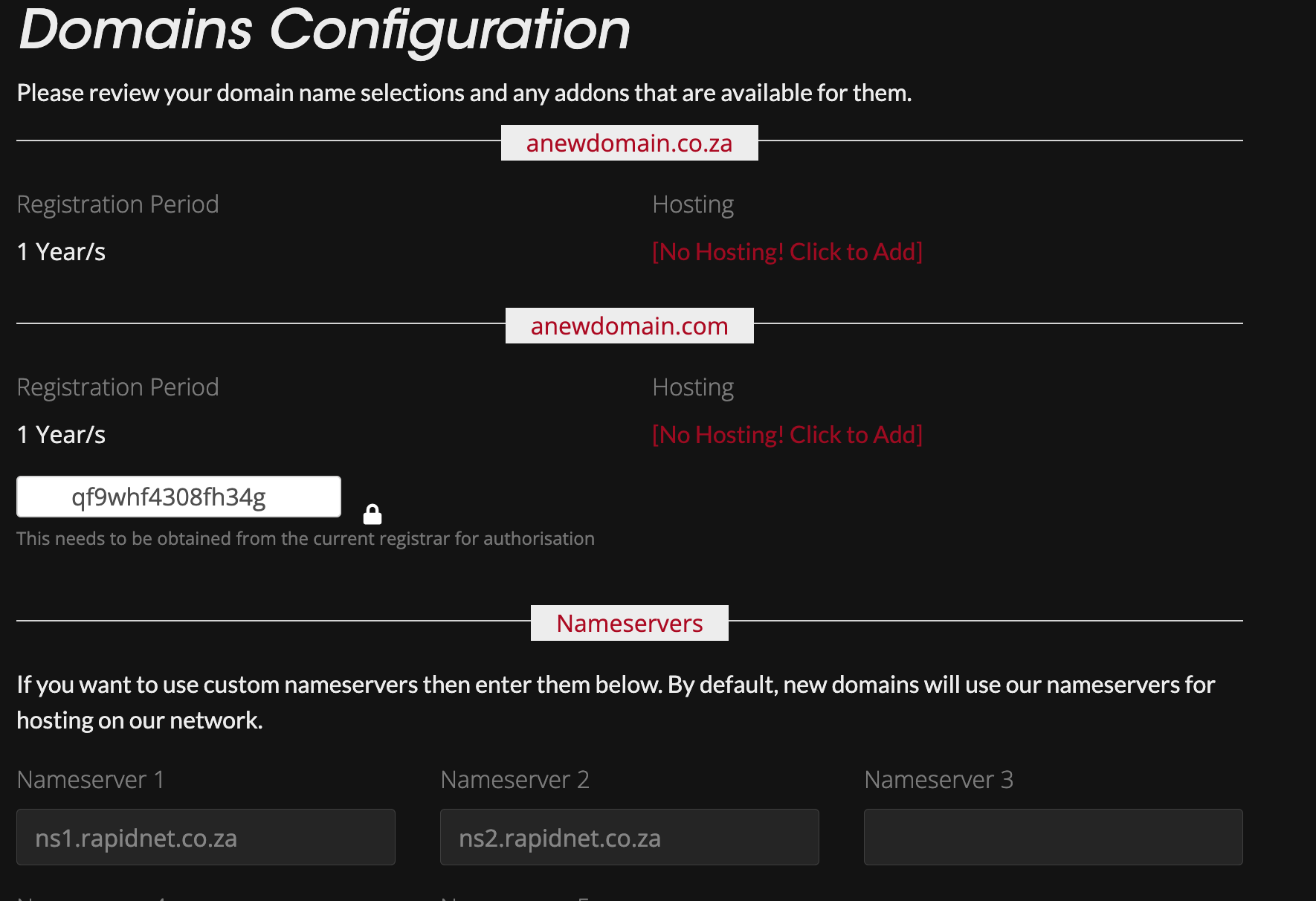
- An EPP code, also known as an Authorisation Code, is a unique security code required to initiate the transfer process for certain domain extensions (e.g., .com, .net, .org). If your domain requires an EPP code for transfer, you'll need to obtain it from your current registrar.
- Visit your current registrar's website and log in to your account.
- Navigate to the domain management section and look for the option to request or generate an EPP code.
- If you're unsure how to obtain your EPP code, refer to the support documentation provided by your current registrar or contact their customer support for assistance.
- Many domains don't need an EPP code like co.za

-
Initiating the Transfer on My Rapidnet
- Log in to your My Rapidnet account.
- Navigate to the "Store" section and select the option to "Transfer a Domain."
- Enter the domain name you wish to transfer into the search field and click "Search."
- Review the domain transfer details, including pricing and any additional services offered.
- Add the domain to your cart by clicking the "Add to Cart" button.
-
Proceed to Checkout
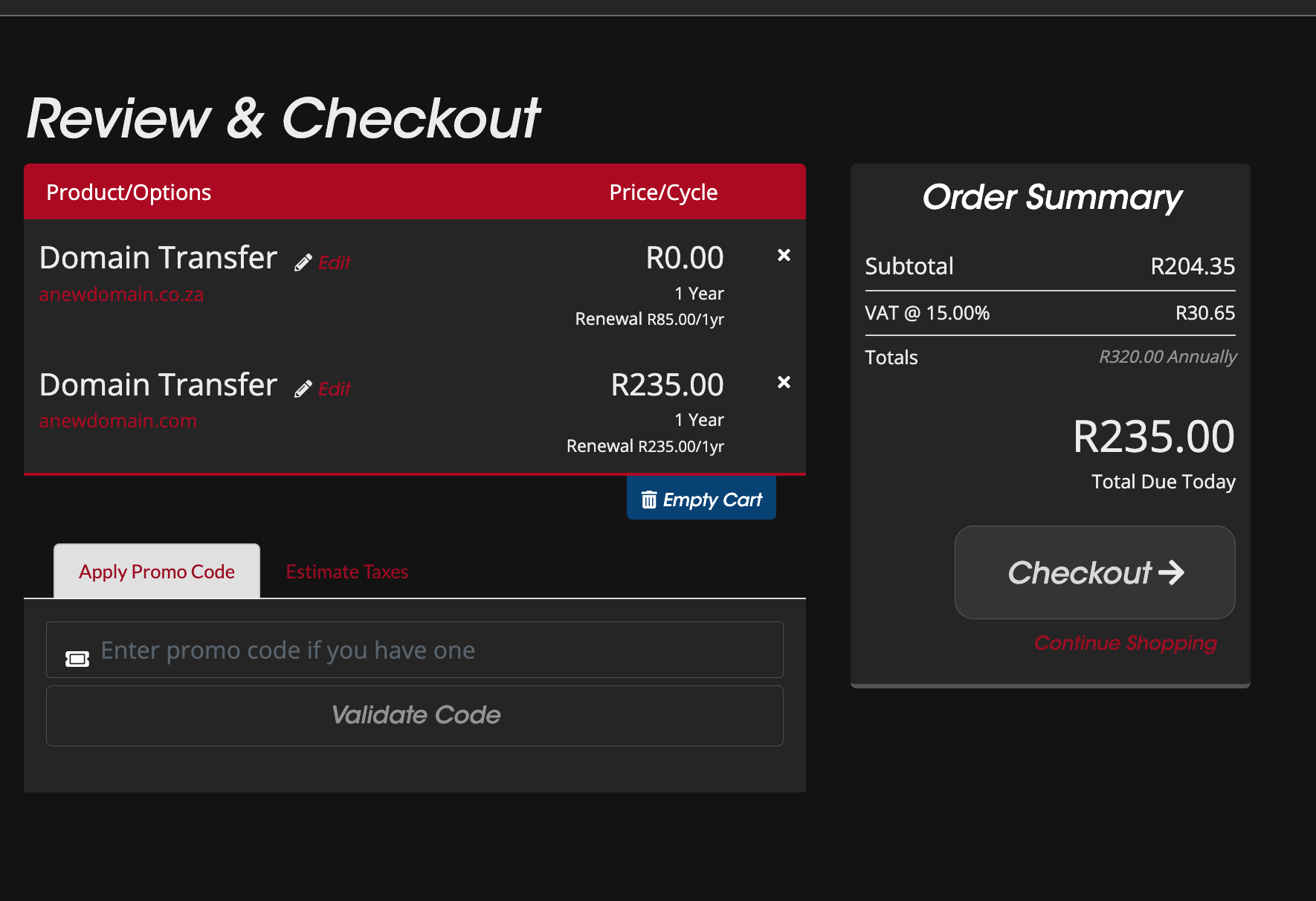
- After adding the domain to your cart, click on the "Checkout" button to proceed.
- Review your order summary, including the total cost and any applicable taxes.
- Click on the "Checkout" button to proceed with the domain transfer.
-
Account Creation or Login
- If you're a new client, you'll need to create an account by providing your details and creating a password.
- Existing clients can log in to their My Rapidnet account using their credentials.
-
Select Payment Option
- Choose your preferred payment method from the available options provided.
- Optionally, you can choose to subscribe to our mailing list for updates and promotions.
-
Complete the Transfer
- Follow the prompts to complete the domain transfer process.
- You may be prompted to enter the EPP code (Authorization Code) obtained from your current registrar during the transfer process.
- Once the transfer is initiated, you'll receive confirmation emails and notifications regarding the status of your transfer.
-
Post-Transfer Verification
- After the transfer process is complete, verify that your domain is successfully transferred to Rapidnet by checking the domain management section of your My Rapidnet account.
- Ensure that your domain settings, including name servers and DNS records, are configured correctly to ensure seamless operation.
Congratulations! You've successfully transferred your existing domain to Rapidnet. If you encounter any issues during the transfer process or have any questions, our support team is available to assist you every step of the way.
